The short answer
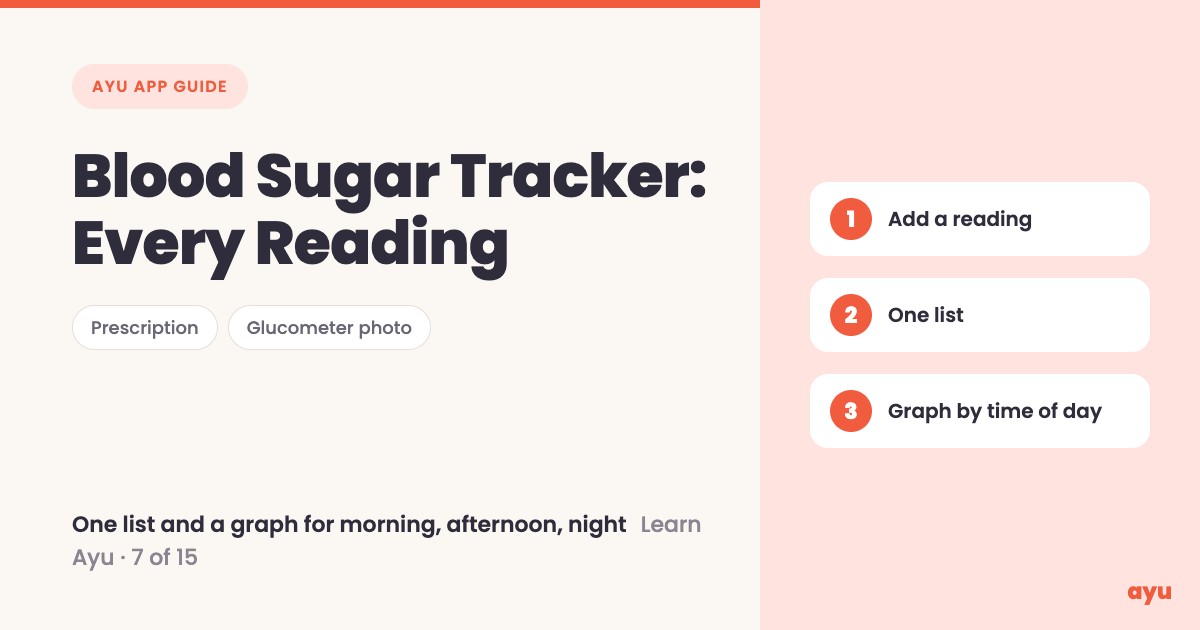
A blood sugar tracker app should keep readings from every source in one place. In Ayu, you can upload a prescription and it finds the sugar and HbA1c, photograph your glucometer or CGM so it reads the number and the time, or add a reading yourself. Every reading lands in one list, and morning, afternoon and night each get their own graph.
The first video is the animated walkthrough in English. The second is Om, Ayu's founder, tracking his own readings on his phone. Both are part of the series of all 15 tutorials.
Sugar readings come from too many places
If you or someone at home has diabetes, you know the mess. One reading is written on a prescription. Another is on the glucometer screen. A third is on a CGM. A fourth was said aloud at the lab, and nobody wrote it down.
So when the doctor asks "how have your readings been?", you scroll through photos and flip through papers. A notebook helps, but only if you wrote in it every time. Ayu is built to pull these readings into one list so the history is there when you need it.
How to track blood sugar readings, step by step
- Open diabetes tracking from the home screen.
- To bring in a reading from paper, upload a prescription. Ayu finds the sugar and HbA1c in it.
- To bring in a reading from a device, take a photo of your glucometer or CGM. Ayu reads the number and the time.
- If you would rather type, add a reading yourself.
- Look at the list. Every reading is there, whichever way it came in.
- Open the graphs. Morning, afternoon and night each have their own.
If you have a pile of old prescriptions, scan them first so the older readings are available. Om's film shows the same flow on his own phone.
What you will see
| Step | What you see |
|---|---|
| Upload a prescription | The sugar and HbA1c values found in it |
| Photograph a glucometer or CGM | The reading and the time it was taken |
| Add a reading yourself | Your typed value in the same list |
| Open the list | Every reading in one place |
| Open the graphs | A separate graph for morning, afternoon and night |
One honest limitation
Ayu reads the number off a photo or a prescription using AI, and AI can misread. A blurry glucometer photo, a smudged strip or a handwritten value can come out wrong. After you add a reading, look at it once and check it against the glucometer screen or the original paper.
Also remember what this is. It is a place to keep and view your readings, not a way to decide what they mean. Ayu does not give medical advice and does not tell you what your numbers should be. Your doctor does that.
Download Ayu from Google Play or the App Store.
Related guides
- Manage diabetes in India
- Blood sugar tests in India
- Medicine reminder app with doctor visit reminders
- Share your medical records with your doctor
Frequently Asked Questions
Common questions and detailed answers about this topic
Disclaimer
This guide is written by the team that builds Ayu. Ayu does not replace your doctor and does not give medical advice, and nothing here tells you what your readings should be or what to do about them. Ayu reads photos and documents with AI, which can misread a value, so check each reading against the glucometer or the original paper, and talk to your doctor about your numbers.